
By Raúl Pérez · Last updated: October 2026 · Reading time: 14 min
Development, test and staging environments rarely need to run at 3 a.m. on a Sunday, yet most teams leave them on around the clock. A schedule that turns them off outside working hours is one of the safest savings in AWS, because it cannot affect production.
This guide compares the three main ways to automate it (EventBridge Scheduler, Instance Scheduler on AWS and Auto Scaling scheduled actions), gives you working code, and covers the traps that make teams save less than they expected.
Key Takeaways
- A 50-hour work week means about 70% less compute runtime than running 168 hours.
- EventBridge Scheduler can call the EC2 and RDS APIs directly. No Lambda function is needed for fixed lists of resources.
- Use tags, not hard-coded IDs, when your fleet changes. Instance Scheduler on AWS or a small Lambda handle that.
- Stopped instances still pay for EBS. Scheduling saves compute only.
- If a Savings Plan or Reserved Instance covers the instance, stopping it may not lower your bill. Check before you count the savings.
[FIGURE 1: insert file
aws-shutdown-scheduling-architecture.svg] Alt text: “Three ways to schedule AWS shutdowns: EventBridge Scheduler, Instance Scheduler on AWS and Auto Scaling scheduled actions, all targeting tagged non-production resources” Caption: “Pick the trigger that matches how your fleet is managed.”
How Much Can You Save?
Compute is billed while an instance is running. A week has 168 hours, so the saving depends on how many hours you actually need.
| Hours on per week | Share of the week | Compute runtime saved |
|---|---|---|
| 40 (8 h x 5 days) | 23.8% | 76% |
| 50 (10 h x 5 days) | 29.8% | 70% |
| 60 (12 h x 5 days) | 35.7% | 64% |
| 168 (always on) | 100% | 0% |
What Stopping Does and Does Not Save
Before you build anything, know the rules:
- EBS volumes keep billing while an instance is stopped. You save compute, not storage.
- Public IPv4 addresses keep billing. Since February 2024, AWS charges $0.005 per hour per address. An Elastic IP stays attached to a stopped instance, and you still pay for it.
- Instance store data is lost on stop. Only use schedules for EBS-backed instances.
- A non-Elastic public IP changes when the instance restarts. Use DNS names, not raw IPs.
- RDS restarts itself. If you do not start a stopped RDS DB instance manually, AWS automatically starts it after seven consecutive days. Your schedule should handle that, or you will pay for databases you thought were off.
- Commitments change the math. If a Savings Plan or Reserved Instance covers the usage, you pay the commitment whether the instance runs or not. Stopping only saves money if other usage can absorb that coverage. See our guide to Reserved Instances vs Savings Plans.
Step 0: Decide What Is Safe to Stop
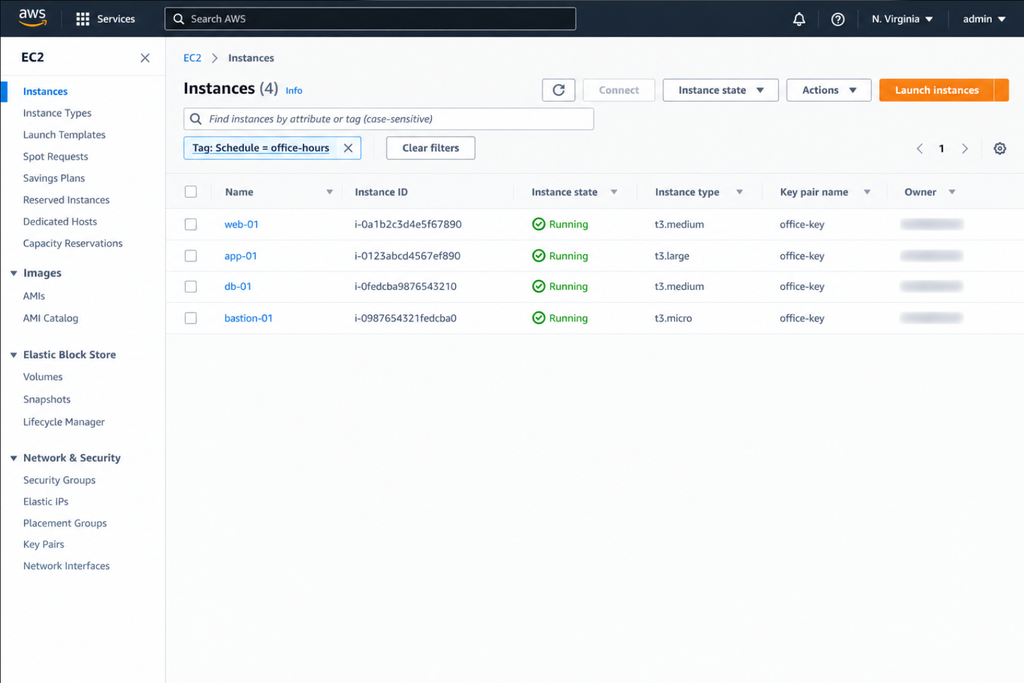
Start small and explicit. A good rule is opt-in by tag: nothing is scheduled unless someone tagged it.
- Tag candidates with
Schedule=office-hours(and anownertag). - Exclude anything that serves customers, runs batch jobs overnight, or has dependencies outside working hours (cron jobs, nightly ETL, backup windows).
- Check CloudWatch for activity between 20:00 and 07:00 before you commit to a schedule.
- Agree the schedule with the owning team. A silent shutdown breaks trust fast.
Option 1: EventBridge Scheduler (No Lambda)
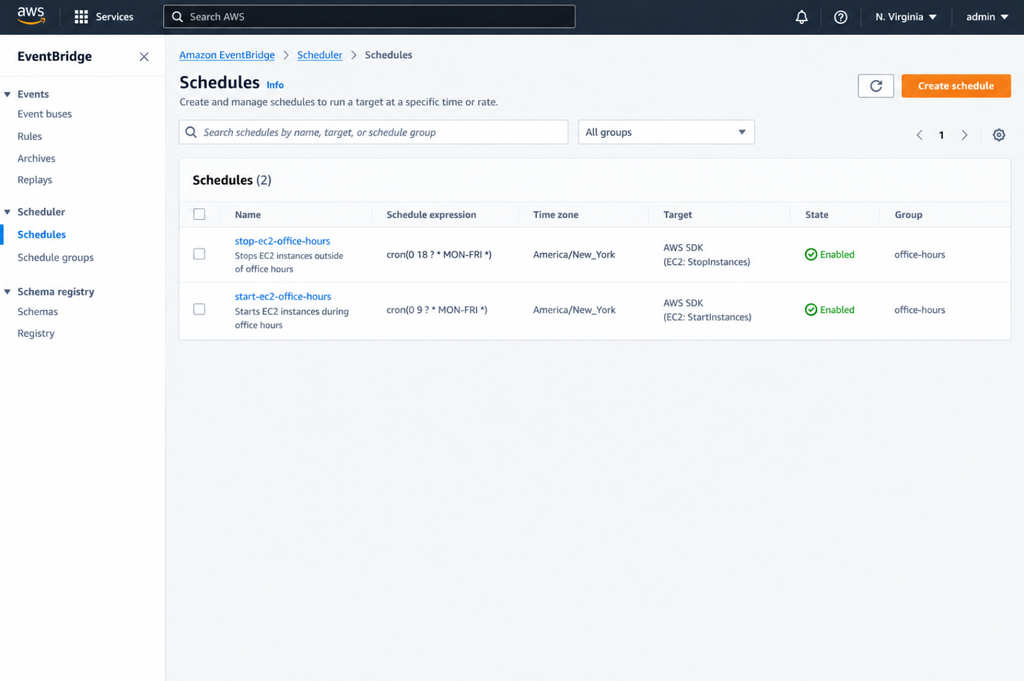
Amazon EventBridge Scheduler can call the EC2 StartInstances and StopInstances APIs directly through its “universal target.” That means no function to write, deploy or patch. It also supports time zones and adjusts for daylight saving time automatically.
Best for: a small, stable list of instances. Limitation: the target takes explicit instance IDs. It does not select by tag, so a changing fleet needs Option 2 or 3.
Step 1: create an IAM role that Scheduler can assume. The trust policy:
{
  "Version": "2012-10-17",
  "Statement": [{
    "Effect": "Allow",
    "Principal": { "Service": "scheduler.amazonaws.com" },
    "Action": "sts:AssumeRole"
  }]
}
Step 2: attach a least-privilege permissions policy. The tag condition acts as a safety net: even a wrong instance ID cannot stop an instance that is not tagged for scheduling.
{
  "Version": "2012-10-17",
  "Statement": [{
    "Effect": "Allow",
    "Action": ["ec2:StartInstances", "ec2:StopInstances"],
    "Resource": "arn:aws:ec2:eu-west-1:123456789012:instance/*",
    "Condition": {
      "StringEquals": { "aws:ResourceTag/Schedule": "office-hours" }
    }
  }]
}
Step 3: create the stop schedule (Monday to Friday, 19:00 in your time zone):
aws scheduler create-schedule \
  --name stop-dev-instances \
  --schedule-expression "cron(0 19 ? * MON-FRI *)" \
  --schedule-expression-timezone "Europe/Madrid" \
  --flexible-time-window Mode=OFF \
  --target '{
    "Arn": "arn:aws:scheduler:::aws-sdk:ec2:stopInstances",
    "RoleArn": "arn:aws:iam::123456789012:role/scheduler-ec2-start-stop",
    "Input": "{\"InstanceIds\":[\"i-0123456789abcdef0\"]}"
  }'
Step 4: create the start schedule the same way, with cron(0 8 ? * MON-FRI *) and the target arn:aws:scheduler:::aws-sdk:ec2:startInstances.
Databases: the same approach works with arn:aws:scheduler:::aws-sdk:rds:stopDBInstance (and startDBInstance), or the DBCluster versions for Aurora, with matching rds: permissions. RDS stop has restrictions depending on engine and configuration, so check the current AWS documentation. Remember the seven-day auto-restart.
aws rds stop-db-instance --db-instance-identifier dev-dbOption 2: Instance Scheduler on AWS (Tag-Driven)
Instance Scheduler on AWS is an official AWS Solution deployed with CloudFormation. It uses resource tags and Lambda to start and stop EC2 instances, Auto Scaling groups and RDS instances on schedules you define, across multiple regions and accounts. It can also use Systems Manager maintenance windows and supports hibernation for EC2.
Best for: many instances, several teams, multiple accounts, or fleets that change often.
How it works:
- Deploy the solution from the AWS Solutions Library (CloudFormation or CDK).
- Define schedules and periods with the included CLI or the configuration table. It also lets you estimate savings for a schedule.
- Tag resources with the tag key you configured (by default
Schedule) and the schedule name as the value, for exampleSchedule=office-hours. - The scheduler checks tagged resources on a regular interval and starts or stops them to match.
Trade-offs: it is more moving parts than Option 1, and the solution itself has a small running cost. AWS publishes an estimate in its implementation guide, so check it for your region and number of accounts.
Option 3: Auto Scaling Scheduled Actions
If the workload already runs in an Auto Scaling group, you do not need to stop individual instances. Scale the group to zero at night:
# Night: scale to zero
aws autoscaling put-scheduled-update-group-action \
  --auto-scaling-group-name dev-asg \
  --scheduled-action-name night-off \
  --recurrence "0 19 * * MON-FRI" \
  --time-zone "Europe/Madrid" \
  --min-size 0 --max-size 0 --desired-capacity 0

# Morning: restore
aws autoscaling put-scheduled-update-group-action \
  --auto-scaling-group-name dev-asg \
  --scheduled-action-name morning-on \
  --recurrence "0 8 * * MON-FRI" \
  --time-zone "Europe/Madrid" \
  --min-size 1 --max-size 4 --desired-capacity 1
Best for: stateless, replaceable instances. Scaling in terminates instances, so anything stored on them must live elsewhere.
Option 4: A Small Lambda Function (Custom Logic)
If you need custom rules (skip a team on release week, notify Slack first, handle an unusual tag scheme), a short Lambda is flexible. This version stops or starts every instance tagged Schedule=office-hours:
import boto3

REGION = "eu-west-1"
TAG_KEY, TAG_VALUE = "Schedule", "office-hours"
ec2 = boto3.client("ec2", region_name=REGION)

def instance_ids(state):
    ids = []
    paginator = ec2.get_paginator("describe_instances")
    for page in paginator.paginate(Filters=[
        {"Name": f"tag:{TAG_KEY}", "Values": [TAG_VALUE]},
        {"Name": "instance-state-name", "Values": [state]},
    ]):
        for reservation in page["Reservations"]:
            ids.extend(i["InstanceId"] for i in reservation["Instances"])
    return ids

def handler(event, context):
    action = event.get("action")
    if action not in ("start", "stop"):
        raise ValueError("event must contain action: start or stop")

    if action == "stop":
        ids = instance_ids("running")
        if ids:
            ec2.stop_instances(InstanceIds=ids)
    else:
        ids = instance_ids("stopped")
        if ids:
            ec2.start_instances(InstanceIds=ids)

    print(f"{action}: {ids}")
    return {"action": action, "instances": ids}
Trigger it from EventBridge Scheduler with the input {"action": "stop"} at 19:00 and {"action": "start"} at 08:00. Give the function role only ec2:DescribeInstances, ec2:StartInstances and ec2:StopInstances, and add the same tag condition as in Option 1.
Which Option Should You Use?
| Situation | Recommended option |
|---|---|
| A handful of fixed instances | EventBridge Scheduler (direct API) |
| Many instances, several teams, multiple accounts | Instance Scheduler on AWS |
| Fleet managed by Auto Scaling groups | Scheduled scaling actions |
| Custom rules or notifications | Lambda triggered by EventBridge Scheduler |
| Databases (RDS, Aurora) | EventBridge Scheduler or Instance Scheduler |
Safety Practices
- Pilot first. Schedule one non-critical instance for a week before rolling out.
- Stagger the start. Databases first, then application servers, so dependencies are ready.
- Alert on failures. Send EventBridge Scheduler failures or Lambda errors to SNS or your chat tool.
- Provide an override. A tag such as
Schedule=always-onor a documented request path prevents shadow IT workarounds. - Keep production out. Use account separation and the IAM tag condition so a mistake cannot reach production.
- Watch for restart failures. If AWS lacks capacity for the instance type at start time, the start can fail. Instance Scheduler can retry with alternate instance types.
Measure the Savings
Do not trust estimates. Measure.
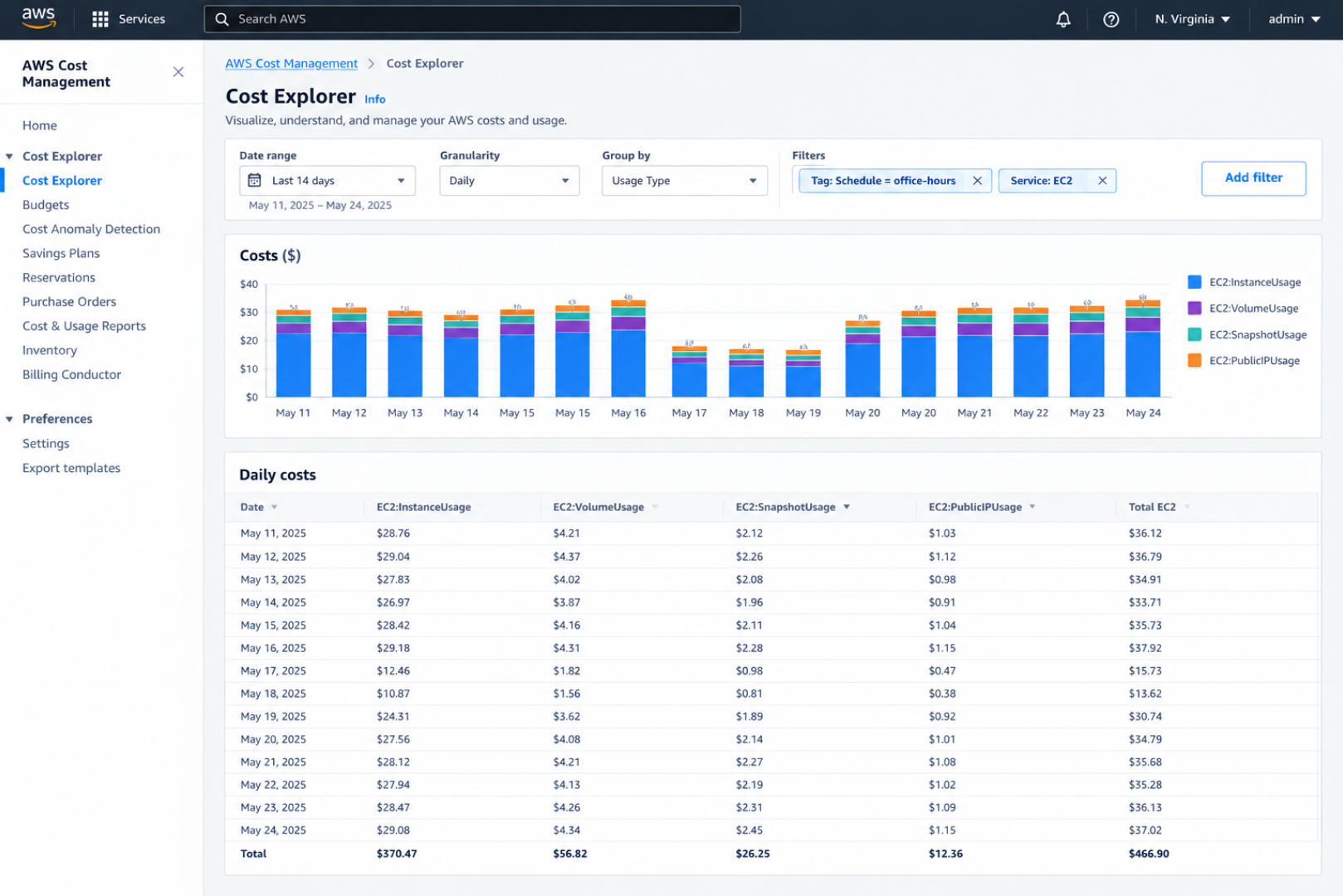
- In Cost Explorer, filter by the
Scheduletag (activate it as a cost allocation tag first). - Compare EC2 running hours and cost for the four weeks before and after.
- Separate compute from EBS and public IPv4, so you can see what scheduling did and did not change.
Common Mistakes
- Expecting EBS savings. Stopped instances still pay for their volumes. Remove orphaned ones with our guide to eliminating unattached EBS volumes and idle IPs.
- Counting savings on committed instances. A Savings Plan or RI still bills whether the instance runs or not.
- Forgetting the RDS seven-day restart.
- Hard-coding instance IDs in a fleet that changes weekly.
- Ignoring time zones. Use the scheduler’s time zone setting, not UTC math in your head.
- Stopping things with overnight jobs. Check CloudWatch before you choose the hours.
- No communication. Tell teams what will be stopped, when, and how to override.
Final Thoughts
Shutting down non-production resources outside working hours is simple, low-risk and fast to measure. For a few fixed instances, EventBridge Scheduler with a direct API target is the least work. For a larger or changing fleet, use Instance Scheduler on AWS or a tag-driven Lambda. Combine it with cleanup of orphaned storage, rightsizing and, last, commitments, as described in our guide to reducing AWS EC2 costs without affecting performance.
FAQ
Does stopping an EC2 instance stop all charges? No. Compute charges stop, but attached EBS volumes and public IPv4 addresses keep billing.
Can EventBridge Scheduler stop instances by tag? Not directly. The universal target needs explicit instance IDs. For tag-based scheduling, use Instance Scheduler on AWS or a Lambda function.
What happens to an RDS instance I stop? It stays stopped for up to seven consecutive days, after which AWS starts it automatically. Re-stop it with a schedule if you want it to stay off.
Will my instance keep its public IP? Only if it has an Elastic IP. Otherwise the public IP changes on restart.
Is Instance Scheduler on AWS free? The solution itself has no license fee, but it runs on AWS resources (such as Lambda and DynamoDB) that have a small cost. See the AWS implementation guide for an estimate.